


How to Automatically Update the Year in Your Website Footer (So You Never Forget Again)
category:
HEY FRIEND! I'm Kara
I'm so glad you're here on my little corner of the internet where I share all things business & design. Palme Design Co. is a studio focused on website + branding design for photographers and creatives.
January 23, 2026
written by:
You know that tiny moment of panic when casually open your website and realize your footer still says “© 2021” and that little bit of panic sets in?
Yeah, we’re not doing that anymore.
Today I’m sharing a simple piece of code that automatically updates the year in your website footer, so once it’s set up, you’ll never have to manually change it again. Ever. Bless.
This is one of those small-but-mighty website details that:
- makes your site feel polished and professional
- saves you time every single year
- quietly works in the background without you thinking about it (we love)
And the best part is, you don’t need to be “techy” to use it.
First things first: what is the copyright year in your footer?
If you’ve never really thought about it, you’re not alone.
The copyright year is the little line of text at the very bottom of most websites that looks something like this:
© 2026 Your Business Name
It’s a standard website element, but it actually does a few important jobs behind the scenes.
Why the copyright year matters (more than you think)
Even though it’s a tiny detail, your footer year sends a few quiet but powerful signals to anyone visiting your site.
1. It shows your business is active and current
When everything on your website feels up to date, visitors subconsciously think:
“This business is legit. They’re paying attention.”
An outdated year can create just enough hesitation to matter — especially for service-based businesses.
2. It builds trust without saying a word
Your website is often someone’s first impression of your business.
Small details like an accurate footer year help reinforce professionalism and care.
No one emails you to compliment it…
but people absolutely notice when it’s wrong.
3. It helps protect your content
The copyright line establishes ownership of the content on your site and signals when it was created or last updated. It’s a simple best practice that helps clarify what’s yours.
4. It’s expected on modern websites
Most people don’t consciously look for it, but when it’s missing or outdated, the site can feel unfinished or neglected.
In short: it’s one of those “invisible when done right” details.
The annoying part: you have to update it every year
Traditionally, keeping your footer year accurate means:
- remembering to update it every January
- opening your site editor
- making a tiny manual change
It’s not hard, it’s just one more thing on the list. And it’s exactly the kind of thing that gets forgotten.
Which is why automating it is such a win.
The code that keeps your footer year up to date
Here’s the magic:
This little snippet pulls the current year automatically, so it updates itself as time passes.
<span id=”currentYear”>2026</span>
Once this is in place, your footer will always display the correct year — no yearly check-ins required.
How to add this to your Showit footer (step-by-step)
Step 1: Open your footer in Showit
Go to Site Settings → Footer (or the custom footer canvas you’re using).
Step 2: Add a Text Box
This will be where your copyright text lives.
Example:
© <span id=”currentYear”>2024</span> Your Website Name. All rights reserved.
Yes, you’ll paste that exactly as written, including the <span> part.
Step 3: Add an Embed Code box
Next, add an Embed Code element to the same footer canvas.
Paste this inside it:
<script>
document.getElementById(“currentYear”).textContent = new Date().getFullYear();
</script>
Step 4: Publish your site
That’s it. No refresh tricks. No extra settings.
Your footer year will now update automatically, every year, forever.
A quick troubleshooting note
If you don’t see the year update right away:
- You will only see the code working on a preview link or your live site, not in the backend of the Showit designer
- Make sure the ID name matches exactly (
id="year") - Confirm the embed code is published
- Try refreshing your browser
Still stuck? Take a breath, it’s almost always a tiny copy/paste thing. Delete what you have a try again!
Tiny detail. Big polish.
This is one of those behind-the-scenes upgrades that makes your website feel quietly elevated.
No one will ever email you saying, “Wow, I love your auto-updating footer year.”
But they will feel the professionalism.
And that matters.
Bookmark this post so you never have to think about it again
Kara Weech




HEY FRIEND!
I'm Kara
I'm so glad you're here on my little corner of the internet where I share all things business & design. Palme Design Co. is a studio focused on website + branding design for photographers and creatives.
let's work together
Unlock the potential of an irresistible, strategic website and branding that will leave potential clients lining up to work with you.
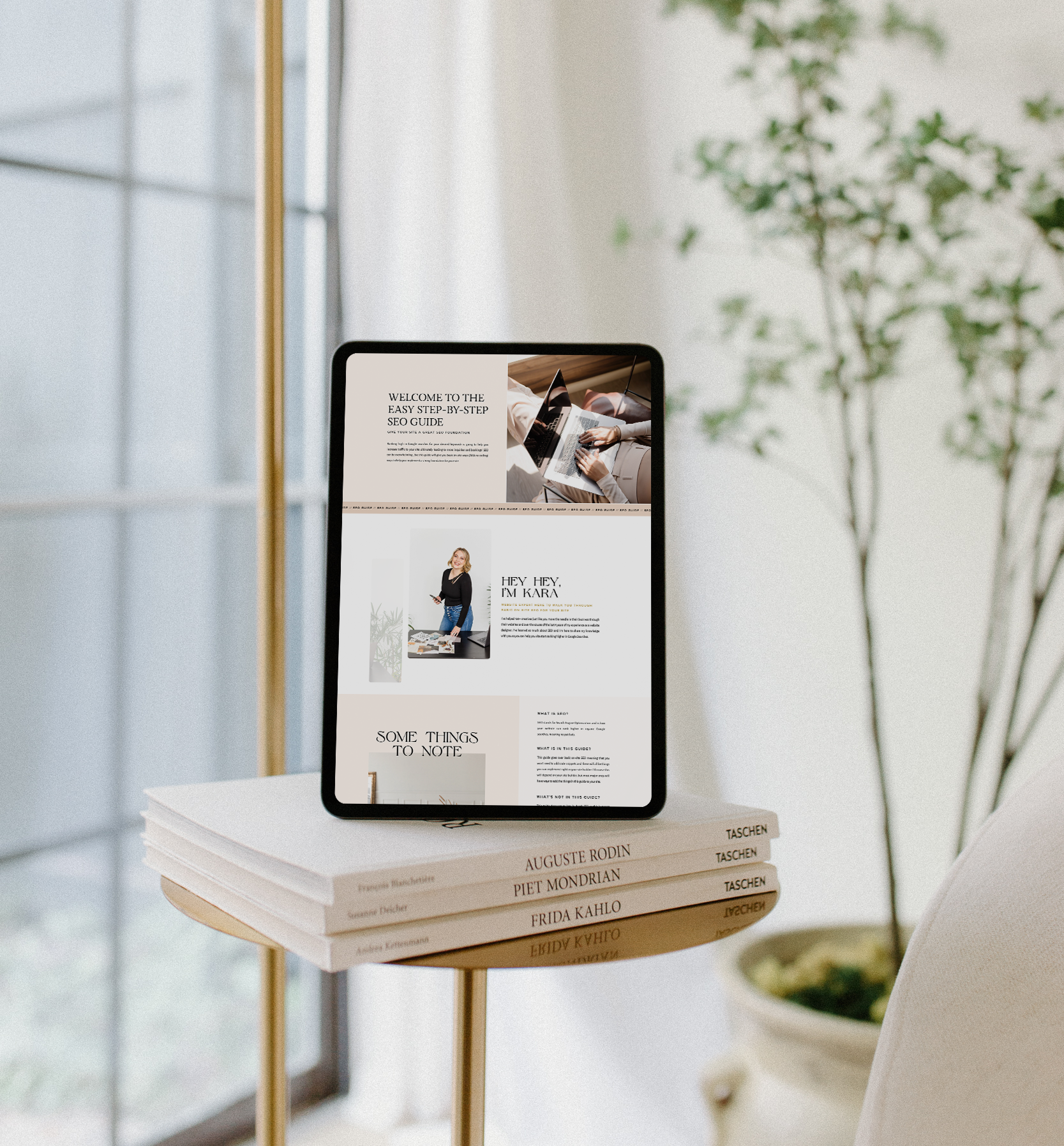
Inside this guide I will give you actionable, step-by-step tips that you can implement in your website right away to lay a strong SEO foundation and start seeing better SEO results so you can get organic leads to your site so qualified potential leads can easily find you on Google.
easy SEO Guide To help you have a good seo foundation to Get Your Site Found on Google
free download


